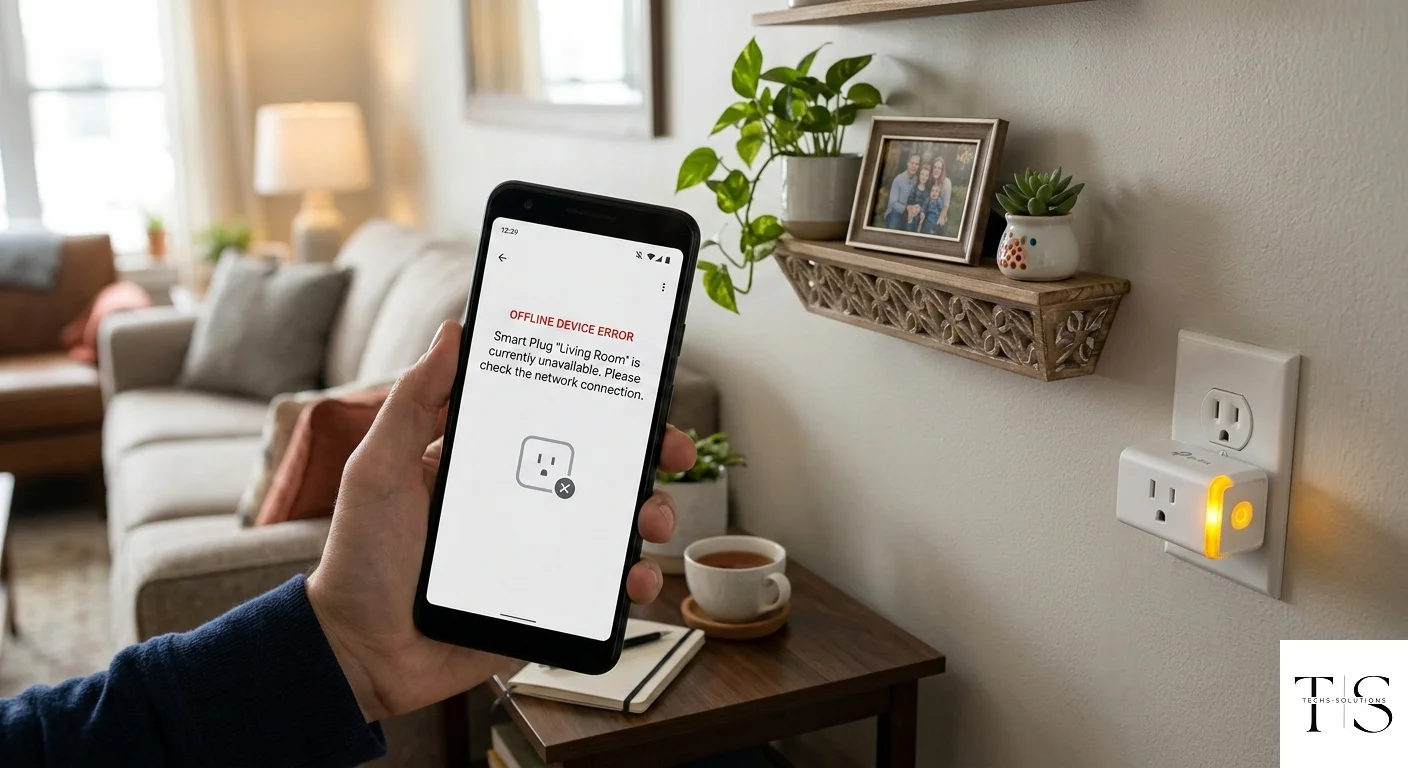
Troubleshooting: What to Do When Your Device Goes Offline
One of the most common issues TS Smart Home users encounter is a device that shows "Offline" in the app. When this happens, your schedules stop running, your remote commands don't work, and the device becomes unresponsive. This guide covers every possible cause and the exact steps to resolve each one.
Understanding "Offline" Status
A device shows as Offline in TS Smart Home when the app cannot establish a real-time connection to it via the cloud. This happens when the device has lost its connection to the internet — not necessarily because the device itself is broken.
There are three layers where connectivity can break:
- Device to Wi-Fi router — the device cannot connect to your home network
- Router to internet — your home network has no internet access
- Device to TS Smart Home cloud — the cloud server cannot be reached
Each layer has different causes and solutions.
Quick First Checks
Before diving into advanced troubleshooting, try these quick fixes first:
- Check your internet connection: Open a browser or another app on your phone and confirm you have internet access
- Check the device's LED: What pattern is it showing? (See the LED Status Guide article for meanings)
- Try a manual power cycle: Unplug the device for 10 seconds and plug it back in
- Refresh the app: Pull down on the dashboard to force a refresh, or close and reopen the app
If the device comes back online after any of these, you are done. If not, proceed with the more detailed steps below.
Cause 1: Device Lost Wi-Fi Connection
Symptoms: LED blinks slowly or shows a specific error pattern. Device was working before.
Most common reasons:
- Wi-Fi password was changed
- Router was replaced or reset (new SSID or password)
- Router firmware update changed network settings
- Temporary Wi-Fi drop that the device failed to recover from
Solutions:
Re-pair the Device
If your Wi-Fi credentials changed, the device needs to be re-paired:
- Reset the device to factory settings (hold button for 10 seconds)
- Re-enter pairing mode (hold button for 5 seconds)
- Follow the pairing process in the app with your new Wi-Fi credentials
Force a Wi-Fi Reconnection
If credentials have not changed, try:
- Restart your router (unplug for 30 seconds)
- Power cycle the smart device
- Wait 2 minutes for everything to fully boot up
- Check if the device reconnects automatically
Cause 2: Device Is Too Far From the Router
Symptoms: Device goes offline intermittently, especially when the router is under load.
Solution: Move the device closer to the Wi-Fi router, or add a Wi-Fi range extender between the router and the device location. Smart plugs and switches are not mobile, so if relocation is not feasible, a mesh Wi-Fi system or extender is the best long-term solution.
Signal Strength Test: In your router's admin panel, check the signal strength (RSSI) reported by your smart device. Anything weaker than -70 dBm will cause intermittent disconnections.
Cause 3: Router Blocking the Device
Symptoms: Device cannot connect even though it is close to the router.
Possible causes:
- MAC address filtering: Your router only allows known devices. Add your smart device's MAC address to the allowed list.
- Client isolation: Some routers block communication between devices on the same network. Disable this setting.
- DHCP lease exhaustion: Your router ran out of IP addresses to assign. Reboot the router to clear old DHCP leases, or expand the DHCP pool in router settings.
- Firewall rules: Custom firewall rules may be blocking the device's outbound MQTT connections (port 8883 or 1883). Allow these ports.
Cause 4: Internet Outage
Symptoms: Multiple devices go offline at the same time.
Solution: Check your internet service. If your internet is down, the smart devices cannot reach the TS Smart Home cloud even though they are connected to your local Wi-Fi. Wait for internet to be restored — devices will reconnect automatically when connectivity is re-established.
Cause 5: Firmware Corruption
Symptoms: Device never comes online even after full factory reset and re-pair. LED shows unusual patterns.
Solution: This is rare but can occur if an OTA firmware update was interrupted (power loss during update). Contact TS Smart Home support through the app, providing your device model and the LED pattern you are seeing. The support team can diagnose and may send a recovery firmware.
Cause 6: TS Smart Home Cloud Service Issue
Symptoms: Multiple devices from different locations go offline simultaneously. Users report similar issues on community forums.
Solution: Check the TS Smart Home service status. If there is a cloud outage, it will be resolved by the Techs Solutions team. Your devices will reconnect automatically when the service is restored. No action is required on your end.
Preventing Future Disconnections
- Use a stable 2.4 GHz network — 5 GHz has shorter range and is less reliable for IoT devices
- Keep your router firmware updated — router bugs sometimes cause device disconnections
- Use a mesh Wi-Fi system for large homes — consistent coverage prevents weak signal dropouts
- Give smart devices static IP addresses — reduces the chance of DHCP-related disconnections
- Enable push notifications — get alerted immediately when a device goes offline
When to Contact Support
Contact TS Smart Home support if:
- A device cannot be re-paired after factory reset
- Multiple devices in different locations go offline simultaneously (cloud issue)
- The device LED shows a pattern not documented in the user guide
- A device went offline immediately after an OTA update
You can submit a support request through Account > Help > Contact Support in the app. Include your device model, the LED pattern, and a description of when the issue started.
Connectivity issues are almost always resolvable. Follow this guide systematically and your device will be back online.
